⚠️ This is an independent comparison. We are not affiliated with Oray (Sunflower) or TeamViewer AG.
Quick Summary
| Category | Winner | Why |
|---|---|---|
| Pricing | Sunflower Control | Much cheaper, especially for small teams |
| Free tier | Sunflower Control | No commercial-use blocks |
| Global performance | TeamViewer | Better server coverage worldwide |
| Asia performance | Sunflower Control | More local servers, lower latency |
| Security certifications | TeamViewer | SOC2, ISO 27001, HIPAA |
| Enterprise features | TeamViewer | Asset management, patch management |
| Ease of setup | Tie | Both simple, but Sunflower is simpler for China |
| Mobile experience | TeamViewer | More polished mobile apps |
Pricing Comparison
TeamViewer Pricing (2026)
| Plan | Price | Key Limits |
|---|---|---|
| Free | $0 | Personal use only, commercial detection, 5-minute timeout on some sessions |
| Business | $24.90/month | 1 user, 200 managed devices, remote support |
| Premium | $50.90/month | Up to 15 users, 500 managed devices, meeting features |
| Corporate | $93.90/month | Up to 30 users, 1000 managed devices, enterprise features |
Important note about TeamViewer pricing: TeamViewer requires annual commitment — there is no true month-to-month option. All paid plans are billed annually, so the actual cost is $299-$1,127 per year upfront. There is also no free trial of paid features.
Sunflower Control Pricing (2026)
| Plan | Price | Key Limits |
|---|---|---|
| Free | $0 | 200 KB/s file transfer, ads, 1 simultaneous connection |
| Basic | ~$3/month | Unlimited transfer speed, no ads, 3 simultaneous connections |
| Pro | ~$6/month | All features, 5 connections, priority support, remote printing |
Sunflower Control offers flexible monthly billing with no annual commitment required. You can pay month-to-month and cancel anytime, which is a huge advantage for users who only need remote access occasionally.
Total Cost of Ownership (1 Year)
| Scenario | Sunflower Control (Pro) | TeamViewer (Business) |
|---|---|---|
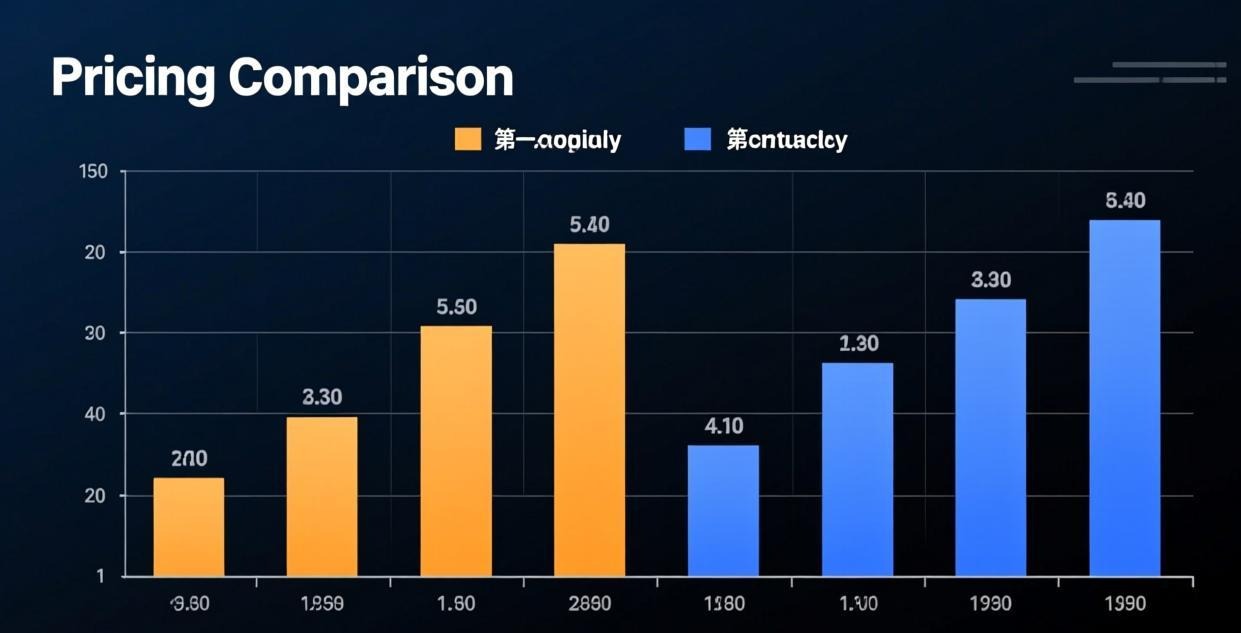
| 1 user, 1 year | ~$72 | $299 |
| 5 users, 1 year | ~$360 (5× Pro) | $611 (Premium) |
| 10 users, 1 year | ~$720 (10× Pro) | $1,127 (Corporate) |
TeamViewer’s cheapest paid plan costs 4x more than Sunflower Control’s most expensive plan. For individual users and small teams, this price difference is enormous and often the deciding factor.
I tried using TeamViewer’s free version for occasional remote support calls to my clients, and within two weeks my account was flagged for “suspected commercial use” — the sessions were only 10 minutes each, maybe twice a week, but that was enough to trigger their detection algorithm. Switching to Sunflower Control eliminated that problem entirely since it doesn’t police how you use the free version.
Feature Comparison
| Feature | Sunflower Control | TeamViewer |
|---|---|---|
| Remote desktop control | ✅ | ✅ |
| File transfer | ✅ (capped on free) | ✅ |
| Unattended access | ✅ (paid) | ✅ (paid) |
| Multi-monitor support | ✅ | ✅ |
| Screen sharing | ✅ | ✅ |
| Remote printing | ✅ (paid) | ✅ |
| VPN alternative | ❌ | ✅ |
| Session recording | ❌ | ✅ (paid) |
| Asset management | ❌ | ✅ (Corporate) |
| Patch management | ❌ | ✅ (Corporate) |
| Mobile to mobile | ✅ | ✅ |
| Wake-on-LAN | ✅ | ✅ |
| Custom branding | ❌ | ✅ (Corporate) |
| Two-factor auth | ✅ | ✅ |
| SSO / SAML | ❌ | ✅ (Corporate) |
| API access | ❌ | ✅ (paid) |
Where Sunflower Control Wins
- Price — Fraction of TeamViewer’s cost
- Free tier — No commercial use detection or session time limits
- Asia connectivity — More relay servers in China and Southeast Asia
- Simplicity — Fewer features means less configuration overhead
- Chinese language support — Native Chinese UI and support team
Where TeamViewer Wins
- Global server network — Lower latency worldwide
- Security certifications — SOC2, ISO 27001, HIPAA compliance
- Enterprise features — Asset management, patch deployment, custom branding
- Session recording — Built-in recording for compliance and training
- Mobile apps — More polished experience on phones and tablets
Performance Comparison
Latency Test Results
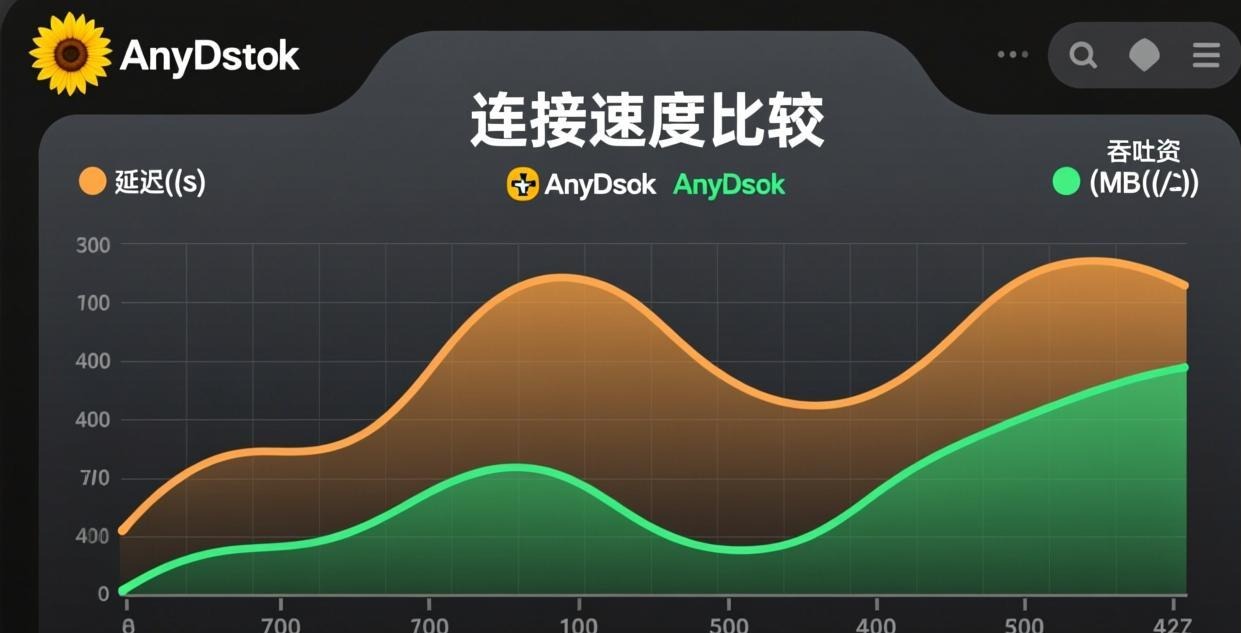
Testing from Shanghai to various locations (average of 5 test runs, measured in milliseconds):
| Destination | Sunflower Control | TeamViewer | Difference |
|---|---|---|---|
| Shanghai (same city) | 15ms | 20ms | Sunflower -5ms |
| Beijing | 25ms | 35ms | Sunflower -10ms |
| Guangzhou | 20ms | 30ms | Sunflower -10ms |
| Tokyo | 45ms | 40ms | TeamViewer -5ms |
| Singapore | 65ms | 60ms | TeamViewer -5ms |
| London | 180ms | 140ms | TeamViewer -40ms |
| New York | 220ms | 160ms | TeamViewer -60ms |
| Sydney | 120ms | 95ms | TeamViewer -25ms |
Sunflower Control wins within China and for nearby Asian destinations. TeamViewer wins for connections to Europe, North America, and Oceania due to its more extensive global relay server network. If both your devices are in Asia, Sunflower is the clear performance winner with measurably lower latency.
Image Quality at Different Speed Settings
| Connection Speed | Sunflower (Balanced) | TeamViewer (Optimized) |
|---|---|---|
| Under 2 Mbps | Usable but blurry | Slightly sharper |
| 2-10 Mbps | Good quality | Good quality |
| 10+ Mbps | Excellent | Excellent |
Both tools deliver comparable image quality at the same bandwidth levels. The main visual difference is in how they handle low-bandwidth connections — TeamViewer’s compression algorithm preserves text readability slightly better, while Sunflower Control maintains smoother motion.
File Transfer Speed
| Test | Sunflower (Paid) | TeamViewer (Paid) |
|---|---|---|
| 100 MB file (same LAN) | 12 seconds | 10 seconds |
| 100 MB file (cross-region) | 45 seconds | 35 seconds |
| 1 GB file (same LAN) | 2 minutes | 1.5 minutes |
TeamViewer’s file transfer is slightly faster due to more optimized compression algorithms and more efficient packet handling, but the difference is negligible for most users. Neither tool has a file size limit, and both support drag-and-drop and file manager interfaces.
Resource Usage Comparison
How much system resources does each tool consume on the remote PC?
| Resource | Sunflower Control | TeamViewer |
|---|---|---|
| RAM (idle) | ~40 MB | ~80 MB |
| RAM (active session) | ~120 MB | ~200 MB |
| CPU (idle) | 0-1% | 1-2% |
| CPU (active HD session) | 8-15% | 10-18% |
| Disk space | ~50 MB | ~120 MB |
Sunflower Control is noticeably lighter on system resources, which matters for older PCs or devices with limited RAM. If your remote PC has 4 GB of RAM or less, Sunflower Control leaves more headroom for other applications.
Real-World Use Case Scenarios
Scenario 1: IT Support for Small Business (5 employees)
Needs: Remote support for employee PCs, unattended access to office server, occasional file transfers
| Factor | Sunflower Control | TeamViewer |
|---|---|---|
| Cost (1 year) | ~$216 (5× Basic) | $611 (Premium) |
| Performance | Excellent (local servers) | Good |
| Setup effort | Low | Medium |
| Recommendation | ✅ Better value | Too expensive for small teams |
Scenario 2: Freelancer Accessing Home PC from Coffee Shop
Needs: Occasional remote access, file transfer, no budget
| Factor | Sunflower Control | TeamViewer |
|---|---|---|
| Free tier reliability | ✅ No usage restrictions | ❌ May flag as commercial |
| Cost | $0 | $0 (risky) or $299/year |
| Recommendation | ✅ Better free tier | Too risky on free plan |
Scenario 3: Enterprise with 50 Remote Workers
Needs: Centralized management, security compliance, session recording
| Factor | Sunflower Control | TeamViewer |
|---|---|---|
| Central management | ❌ | ✅ |
| Security certifications | ❌ | ✅ SOC2, ISO 27001 |
| Session recording | ❌ | ✅ |
| Recommendation | Not suitable | ✅ Enterprise choice |
Security Comparison
| Security Feature | Sunflower Control | TeamViewer |
|---|---|---|
| Encryption | AES-256 | AES-256 + end-to-end |
| Two-factor auth | ✅ | ✅ |
| Brute force protection | ✅ | ✅ |
| Session logging | Basic | Detailed |
| IP whitelisting | ✅ | ✅ |
| SOC2 certification | ❌ | ✅ |
| ISO 27001 | ❌ | ✅ |
| HIPAA compliance | ❌ | ✅ |
| Security audits | Limited | Regular third-party |
Honestly, for personal use and small businesses, both tools provide adequate security. The encryption and 2FA on both platforms protect against the most common attack vectors — unauthorized access and credential theft. The certification gap only matters for regulated industries (healthcare, finance, government) where compliance documentation is mandatory for audits.
TeamViewer’s Commercial Use Detection
This deserves special attention because it’s the #1 reason people switch from TeamViewer to Sunflower Control. TeamViewer uses an algorithm that analyzes your connection patterns (session frequency, duration, time of day, number of devices) to detect commercial use. When triggered:
- Your connections get a 5-minute timeout warning
- You see a “Commercial use detected” message
- Your session is forcibly disconnected after the timeout
- The only fix is to buy a paid license or request a reset (which is rarely granted)
This detection is notoriously aggressive and often flags legitimate personal use. Many users report being blocked after connecting to their own home PC from work a few times. Sunflower Control has no such detection system — the free version works the same whether you use it once a month or all day every day.
Ease of Use Comparison
Installation and Setup
| Aspect | Sunflower Control | TeamViewer |
|---|---|---|
| Installation time | 2-3 minutes | 3-5 minutes |
| Account required | Yes | Yes |
| First connection | Simple — enter device code | Simple — enter partner ID + password |
| Unattended access setup | 4 steps | 6+ steps with policy configuration |
| Mobile app setup | Quick — scan QR or enter code | Quick — enter partner ID |
| Port forwarding needed | No (unless you want P2P) | No (uses relay servers by default) |
Both tools are easy to set up, but Sunflower Control is slightly simpler for unattended access because it requires fewer configuration steps. TeamViewer’s unattended access requires setting up a personal password, configuring access controls, defining TeamViewer policies for permissions, and sometimes adjusting the TeamViewer service settings — Sunflower Control just needs an access password on each device.
The first connection experience is also slightly different. With Sunflower Control, you enter the remote device’s identification code and access password. With TeamViewer, you enter the Partner ID and then either the random password (for attended access) or your personal password (for unattended access). Both are straightforward, but Sunflower Control’s single-password approach is marginally simpler.
User Interface
- Sunflower Control — Clean, straightforward interface focused on device management. The device list shows all your connected PCs with online/offline status indicators and quick-connect buttons. Simple but functional, with minimal learning curve.
- TeamViewer — More feature-rich interface with tabs for remote control, meetings, file transfer, and asset management. Can feel overwhelming for users who just want basic remote access. The Computer & Contacts panel is powerful but adds complexity.
For users who only need remote desktop access without meetings, asset management, or VPN features, Sunflower Control’s simpler interface is actually an advantage. Less clutter means faster access to the functions you actually use.
Platform Support Comparison
| Platform | Sunflower Control | TeamViewer |
|---|---|---|
| Windows | ✅ | ✅ |
| macOS | ✅ | ✅ |
| Linux | ❌ | ✅ |
| Android | ✅ | ✅ |
| iOS | ✅ | ✅ |
| Chrome OS | ❌ | ✅ |
| Raspberry Pi | ❌ | ✅ |
TeamViewer supports more platforms, which matters if you need to access Linux servers or Chrome OS devices. Sunflower Control focuses on the most popular platforms (Windows, Mac, Android, iOS), which covers the vast majority of users. If you need Linux or Chrome OS support, TeamViewer is your only option between these two.
Customer Support Comparison
| Support Type | Sunflower Control | TeamViewer |
|---|---|---|
| Free tier support | Community forums, knowledge base | Community forums, limited email |
| Paid tier support | Email + live chat (Pro) | Priority phone + email (Premium+) |
| Support language | Chinese, English | Multiple languages |
| Response time (paid) | 24-48 hours | 4-24 hours |
| Knowledge base quality | Good (Chinese), limited English | Excellent (multiple languages) |
TeamViewer’s customer support is more comprehensive, especially at higher tiers where you get phone support. Sunflower Control’s support is adequate but primarily focused on Chinese-language users. English-speaking users may find the documentation and response times less polished.
Ads and User Experience
One often-overlooked difference is the advertising experience:
- Sunflower Control Free: Displays banner ads within the application. These ads are not intrusive (no pop-ups or video ads) but do take up screen space. They disappear entirely on paid plans.
- TeamViewer Free: No ads within the application, but you may see promotional messages encouraging you to upgrade. The session timeout for “suspected commercial use” is more disruptive than any advertisement.
Many people don’t realize that Sunflower Control’s ads are relatively mild compared to other free software. They’re static banners in the sidebar, not pop-ups that interrupt your workflow. The free version’s main limitation is the 200 KB/s file transfer speed cap, not the ads.
Long-Term Reliability
| Factor | Sunflower Control | TeamViewer |
|---|---|---|
| Company age | Since 2009 | Since 2005 |
| User base | 30M+ registered | 600K+ subscribers |
| Update frequency | Monthly | Monthly |
| Backward compatibility | Good | Good |
| Free tier longevity | Likely stable (drives paid conversions) | Uncertain (tightening restrictions) |
TeamViewer has been gradually restricting its free tier over the years — adding commercial use detection, reducing session times, and limiting features. Sunflower Control’s free tier has remained relatively stable, with the main monetization being the speed cap and ads rather than usage restrictions.
Use Case Recommendations
Choose Sunflower Control If:
- Both devices are in Asia
- You’re on a tight budget
- You need a reliable free tier without commercial use detection
- You primarily speak Chinese and want native language support
- You don’t need enterprise features like asset management or session recording
- You’re an individual user or small team (under 10 people)
Choose TeamViewer If:
- Devices are spread across multiple continents
- You need enterprise features (asset management, patch management, SSO)
- You work in a regulated industry that requires security certifications
- You need session recording for compliance or training
- You have the budget for premium remote access software
- You need the VPN alternative feature for secure network access
Migration Guide: Switching from TeamViewer to Sunflower Control
If you’re switching from TeamViewer to Sunflower Control:
- Install Sunflower Control on all devices — Windows | Mac | Android | iOS
- Set up unattended access — Follow this guide
- Test connectivity — Connect from your primary device before uninstalling TeamViewer
- Keep TeamViewer installed for 1-2 weeks as a backup during the transition
- Uninstall TeamViewer once you’re confident Sunflower Control works for all your use cases
- Update your documentation — Make note of your new device codes and access passwords
Tip: Keep TeamViewer installed as a backup for the first two weeks. This gives you a safety net if you discover a Sunflower Control limitation that affects your workflow. Once you’ve used Sunflower Control exclusively for two weeks without issues, it’s safe to remove TeamViewer.
Things to Watch Out For During Migration
- Device codes are different — Your Sunflower Control device codes won’t match your TeamViewer IDs. Update any documentation or bookmarks.
- Access passwords need to be set — TeamViewer’s unattended access passwords won’t transfer. Set new access passwords on each device.
- Connection habits may need adjustment — Sunflower Control’s interface is slightly different. Spend a few minutes getting familiar with the device list and connection options.
- File transfer works differently — Sunflower Control uses a dual-pane file manager instead of TeamViewer’s drag-and-drop approach. Both work, but the workflow is different.
Final Verdict
Sunflower Control is the better choice for individual users, small teams, and anyone whose devices are primarily in Asia. The pricing advantage alone makes it the obvious choice for budget-conscious users — you get 90% of TeamViewer’s functionality for 25% of the price.
TeamViewer is the better choice for enterprises, regulated industries, and organizations with devices spread across multiple continents. The security certifications, enterprise features, and global server network justify the premium price for larger organizations.
For most people reading this comparison, Sunflower Control offers the best value. The free tier is genuinely usable without commercial use detection, the paid plans are affordable, and the performance in Asia is excellent. TeamViewer’s advantages only become decisive at the enterprise level.
What to Read Next
- Sunflower Control vs AnyDesk → AnyDesk comparison
- Sunflower Control vs ToDesk → ToDesk comparison
- Free vs Paid Sunflower Control → Plan comparison
- Set up unattended access → Setup guide
- Fix connection problems → Connection fix guide
This comparison was written based on Sunflower Control and TeamViewer 2026 versions. Features and pricing may change. This site is an independent information resource and is not affiliated with Oray, Sunflower, or TeamViewer AG.
Disclaimer: This is an independent guide and comparison site. We are not associated with Oray, Sunflower, TeamViewer, or any other remote control software company. All trademarks belong to their respective owners. This site provides links to official sources only for your safety and convenience.