⚠️ This guide covers all Sunflower Control account, login, and password issues. Find your specific problem below and follow the step-by-step fix.
Common Account Problems
| Problem | Likely Cause | Fix Time |
|---|---|---|
| Forgot password | — | 5 minutes |
| Account locked | Too many failed logins | 30 minutes (wait) |
| Can’t sign in (password correct) | Wrong email, cache issue | 10 minutes |
| Didn’t receive reset email | Spam filter, wrong email | 10 minutes |
| Account expired | Subscription ended | 5 minutes (renew) |
| Two-factor authentication issue | Lost 2FA device | Varies |
| Can’t create account | Email already registered | 5 minutes |
Fix #1: Reset Your Password
If you’ve forgotten your password or your account is locked:
- Open Sunflower Control login screen
- Click “Forgot Password” or “Can’t access your account?”
- Enter your registered email address
- Check your email inbox for the reset link
- Click the reset link (expires after 24 hours)
- Set a new strong password (12+ characters recommended)
- Sign in with the new password
If you don’t receive the reset email:
- Check your spam/junk folder
- Add Sunflower Control’s email domain to your contacts
- Wait 5 minutes — some email providers delay delivery
- Try requesting another reset email
- Make sure you’re entering the correct email address
I once spent 20 minutes trying to reset a password before realizing I was entering my work email ([email protected]) instead of the personal email ([email protected]) I used to register the Sunflower Control account. Double-check which email you signed up with — it’s the most common reason reset emails don’t arrive, and it’s embarrassingly easy to mix up similar email addresses when you have multiple accounts.
Fix #2: Account Locked After Failed Logins
For security, Sunflower Control temporarily locks accounts after multiple incorrect password attempts:
| Failed Attempts | Lock Duration |
|---|---|
| 3-5 attempts | 15 minutes |
| 6-10 attempts | 30 minutes |
| 10+ attempts | 1 hour |
How to unlock:
- Wait — The lock automatically expires after the duration above
- Reset your password — Using the “Forgot Password” flow will also unlock your account
- Don’t keep trying — Each failed attempt resets the lock timer
After the lock expires, try signing in again with the correct password. If you’ve genuinely forgotten your password and can’t remember it, use the password reset flow instead of guessing — repeated failed login attempts just extend the lock timer and make you wait longer before you can access your account.
How to Avoid Account Locks
To prevent future account locks:
- Use a password manager — It automatically fills in the correct password every time, eliminating typos
- Don’t share your password — Other people typing wrong passwords can lock your account
- Enable biometric login on mobile — Face ID/Touch ID/fingerprint never gets the password wrong
- Note your email address — Make sure you’re always signing in with the correct registered email
Fix #3: Can’t Sign In Despite Correct Password
If you’re sure your password is right but still can’t log in:
Check Your Email Address
- Make sure you’re using the correct email — not a similar one (gmail.com vs googlemail.com, [email protected] vs [email protected])
- Check for typos in the email address
- If you have multiple email accounts, try each one
Clear App Cache and Data
Windows:
- Close Sunflower Control
- Open
%APPDATA%\Sunflower\ - Delete the
cachefolder - Restart the app and try signing in
Android:
- Settings → Apps → Sunflower → Storage → Clear Cache
- If that doesn’t work, Clear Data (this resets app settings)
iOS:
- Delete the app
- Restart your phone
- Reinstall from App Store
Check for Server Issues
Sometimes the problem isn’t your account — it’s the server:
- Try signing in from a different device or the web browser
- Check the official Sunflower Control status page
- If others are reporting login issues, wait for the service to recover
Fix #4: Subscription and Account Expiration
If your paid subscription has expired, some features may stop working:
- Open Sunflower Control → Settings → Account → Subscription
- Check your subscription status and expiration date
- If expired, click “Renew” to continue your subscription
- After renewal, features like unattended access will reactivate
Important: An expired subscription doesn’t delete your account, devices, or settings — it just disables premium features like unattended access and high-speed file transfer. Your device list, access passwords, and configuration are all preserved. Once you renew, everything goes back to working exactly as before.
Renewal Issues
If you’re having trouble renewing your subscription:
- Check payment method — Make sure your credit card hasn’t expired or been declined
- Try a different payment method — Some cards may be rejected by the payment processor
- Check with your bank — Some banks block international transactions
- Clear browser cache — If renewing through the website, clear your browser cache and try again
- Contact support — If payment keeps failing, the support team can help process the renewal manually
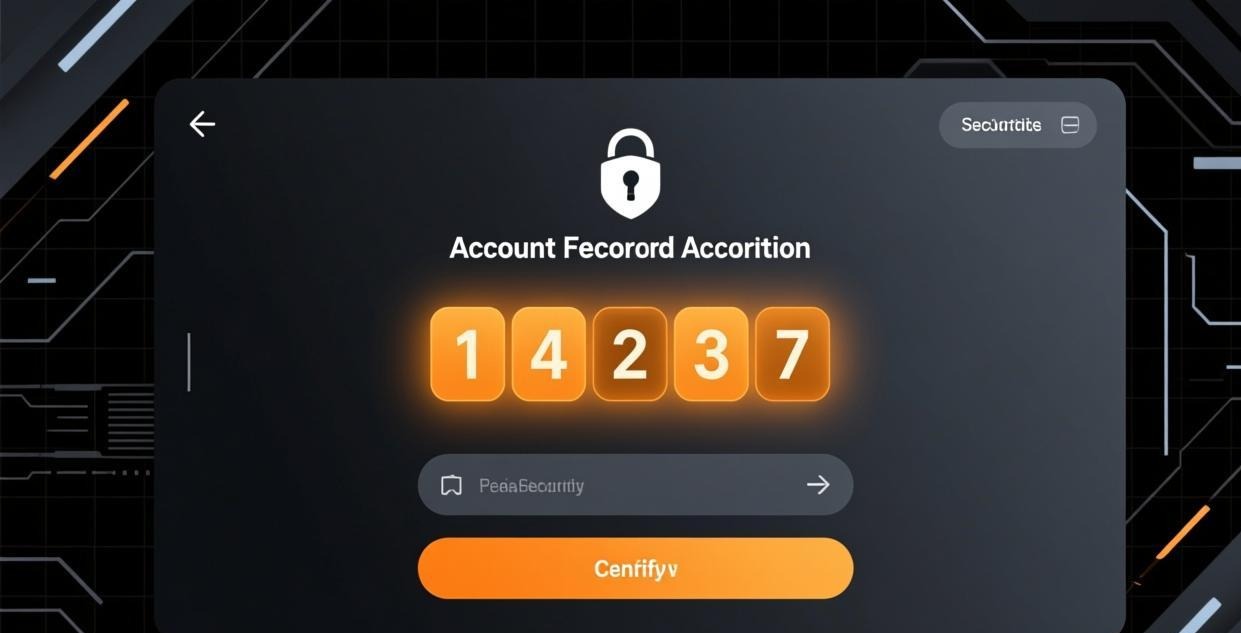
If you enabled 2FA and lost access to your authentication device:
- Use backup codes — If you saved backup codes when enabling 2FA, enter one of them
- Contact support — If you don’t have backup codes, you’ll need to verify your identity with support
- Provide account verification — Be prepared to confirm your email, registration date, and device names
To avoid 2FA lockouts in the future:
- Save backup codes in a secure location (password manager recommended)
- Use an authenticator app that syncs across devices (not SMS-only)
- Add a secondary authentication method if available
Fix #6: Account Creation Problems
“Email already registered”
This means someone (probably you) already created an account with that email:
- Try signing in instead of creating a new account
- Use the “Forgot Password” flow if you don’t remember the password
- If someone else used your email, contact support to reclaim it
“Invalid email format”
- Make sure there are no spaces in the email
- Check for common typos: @gmial.com → @gmail.com, @hotmal.com → @hotmail.com
- Don’t use special characters that aren’t allowed in email addresses
“Password too weak”
Sunflower Control requires passwords that meet minimum security standards to protect your account and all the remote devices connected to it:
| Requirement | Minimum | Recommended |
|---|---|---|
| Length | 8 characters | 12+ characters |
| Complexity | Mix of letters and numbers | Upper + lower + numbers + symbols |
| Uniqueness | Not a commonly used password | Not used on any other website |
Use a password manager (like Bitwarden, 1Password, or KeePass) to generate and store a strong, unique password. Password managers eliminate the need to remember complex passwords and ensure you never reuse the same password across different services.
Fix #7: Sign-In Loop (Keeps Asking to Sign In)
If Sunflower Control keeps asking you to sign in repeatedly:
- Check your internet connection — The app may be failing to validate your session
- Clear the app cache — Corrupted session data can cause sign-in loops
- Update the app — Older versions may have session management bugs
- Check your device’s date and time — Incorrect date/time can cause authentication token validation failures
- Check your device’s date and time — Incorrect date/time settings can cause authentication token validation to fail because the tokens have time-based expiry. Make sure your device is set to automatically sync its clock
- Reinstall the app — As a last resort, a clean install often fixes persistent session issues by removing all cached data and configuration files
The date/time issue is more common than people think and often overlooked during troubleshooting. I once helped a client who was stuck in a sign-in loop for days, only to discover their computer’s clock was 3 hours off after a dead CMOS battery caused the BIOS time to reset. Once we fixed the system clock to sync automatically with the internet time server, Sunflower Control signed in immediately without any other changes.
Fix #8: Mobile App Login Issues
Android Login Problems
| Issue | Fix |
|---|---|
| “Network error” on sign-in | Check Wi-Fi/mobile data, disable VPN temporarily |
| App crashes on login | Clear cache, update app, reinstall |
| “Session expired” repeatedly | Sign out completely, then sign in fresh |
| Google Play account conflict | Use email/password login instead of Google sign-in |
iOS Login Problems
| Issue | Fix |
|---|---|
| “Network error” on sign-in | Check Wi-Fi, toggle Airplane Mode on/off |
| Face ID/Touch ID not working | Re-enable in Settings → Sunflower → Face ID |
| “Session expired” repeatedly | Delete app, restart phone, reinstall |
| Keychain password wrong | Update password in Settings → Passwords |
Password Security Best Practices
After fixing your account issue, follow these practices to prevent future problems:
- Use a unique password — Don’t reuse passwords from other services
- Use a password manager — Generate and store strong passwords securely
- Enable two-factor authentication — Adds a critical second layer of protection
- Never share your password — Not with colleagues, friends, or support staff
- Change your password if compromised — If you suspect unauthorized access, change it immediately
- Check haveibeenpwned.com — See if your email has appeared in known data breaches
- Use 12+ character passwords — Short passwords can be brute-forced in minutes
Honestly, the #1 cause of account problems I see in practice is password reuse across multiple services. People use the same password across dozens of websites, and when one site gets breached, attackers systematically try those stolen credentials on every other popular service — including remote access tools like Sunflower Control. Use a unique password for your Sunflower Control account — it protects access to all your remote devices, and a compromised remote access account gives attackers full control of every computer connected to it.
Account Recovery Checklist
If you’re locked out of your account, follow this checklist in order:
Step 1: Try signing in with all your email addresses
- Try personal email
- Try work email
- Try old email addresses you may have used
- Check for typos (gmail vs googlemail, .com vs .co.uk)
Step 2: Reset your password
- Click “Forgot Password” on the login screen
- Enter each possible email address
- Check inbox and spam folder for reset emails
- Click the reset link within 24 hours
- Set a new strong password
Step 3: If still locked out
- Wait 30 minutes if account is locked
- Clear app cache and try again
- Try signing in from a different device
- Try the web browser version if available
- Check your device’s date and time settings
- Contact official support with account verification details
Step 4: After regaining access
- Change your password to something strong and unique
- Enable two-factor authentication
- Save backup codes in a secure location
- Review your device list for unknown devices
- Update the access password on all your remote devices
Preventing Future Account Issues
Set Up Password Recovery Options
After regaining access, configure these recovery options:
- Add a recovery email — A secondary email that can receive password reset links
- Add a phone number — For SMS-based account recovery if available
- Save backup 2FA codes — Store them in a password manager, not on paper that can be lost
- Note your account email — Write down which email you used, or add it to your password manager
Regular Account Maintenance
- Sign in at least once every 90 days — Some services deactivate dormant accounts
- Keep your email active — If you lose access to your registered email, account recovery becomes much harder
- Review your device list monthly — Remove devices you no longer use to keep the list clean
- Update your password every 6 months — Or immediately if you suspect it’s been compromised
What to Do If You Suspect Your Account Is Compromised
If you notice signs of unauthorized access (unknown devices in your list, unexpected connection notifications, changed settings):
- Change your password immediately — Use a strong, unique password
- Enable two-factor authentication — If not already enabled
- Change all device access passwords — Update the access password on every device with the host client installed
- Review connection logs — Check for unauthorized sessions
- Remove unknown devices — Delete any devices you don’t recognize from your account
- Check your email security — Make sure the attacker can’t reset your password through your email account
A compromised Sunflower Control account is particularly dangerous because it gives the attacker remote access to every computer linked to your account. Treat account security with the same seriousness as your online banking credentials.
Account Management on Different Platforms
Windows Account Settings
- Open Sunflower Control → Settings → Account
- View account email, subscription status, and security settings
- Change password, enable 2FA, manage devices
- Export account data if needed
Mac Account Settings
- Sunflower Control menu → Preferences → Account
- Same options as Windows
- Keychain integration for password management
Mobile Account Settings
- Open Sunflower Control app → Settings → Account
- Limited options compared to desktop — some changes require the desktop app or website
- Use the website for full account management if the mobile app options are limited
Understanding Sunflower Control Account Types
| Feature | Free Account | Paid Account |
|---|---|---|
| Remote control | ✅ | ✅ |
| File transfer (200 KB/s) | ✅ | ❌ (unlimited speed) |
| Unattended access | ❌ | ✅ |
| Multi-device | ✅ (unlimited devices) | ✅ (unlimited devices) |
| Simultaneous connections | 1 | Up to 5 |
| Priority support | ❌ | ✅ |
| Ad-free experience | ❌ | ✅ |
Your account type doesn’t affect login functionality — both free and paid accounts use the same authentication system. If you’re having trouble signing in, it’s not because of your subscription level. However, if your paid subscription expires and you were relying on features like unattended access, you may think your account is “broken” when really you just need to renew.
Upgrading from Free to Paid
If you want to upgrade your free account to access premium features:
- Sign in to your existing free account
- Go to Settings → Account → Subscription
- Choose a plan (monthly or annual — annual typically offers a discount)
- Enter payment information
- Premium features activate immediately after payment
- You keep the same account, same device list — nothing changes except the feature availability
Don’t create a new account when upgrading — that would lose your existing device list and require you to set up all your devices again from scratch.
- Fix connection errors → Connection failed guide
- Set up secure unattended access → Unattended access guide
- Multi-device management → Multi-device guide
- Download latest version → Windows | Mac | Android | iOS
This guide was written based on Sunflower Control 2026 latest version. Software features may change with updates. This site is an independent information resource and is not affiliated with Oray or the Sunflower remote control development team.
Disclaimer: This is an independent guide and review site. We are not associated with Oray, Sunflower, or any other remote control software company. All trademarks belong to their respective owners. This site provides links to official sources only for your safety and convenience.