You’re remotely controlling another computer. You need to switch windows, take a screenshot, or quickly adjust the remote screen. If you’re reaching for the mouse every time, you’re wasting time.
Sunflower Control has a full set of keyboard shortcuts—and unlike some remote tools, most of them are customizable. This guide covers every default shortcut, how to remap them, and how to set up application-specific key bindings.
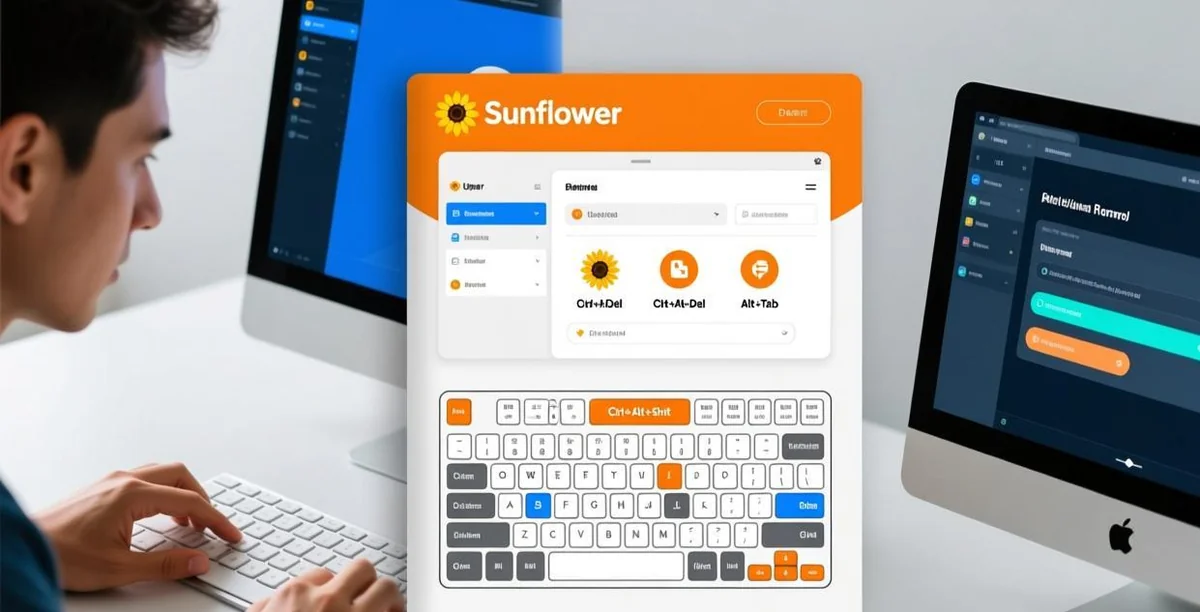
Default shortcut reference table
| Shortcut | Action | When to Use |
|---|---|---|
| Ctrl+Alt+Shift | Release cursor from remote | Anytime you need to operate your local computer without closing the remote session |
| Alt+Tab | Switch windows on remote | Navigate remote applications |
| Ctrl+Alt+Shift+Tab | Switch windows on local | Navigate your own computer while remote is active |
| Ctrl+Alt+Shift+Win | Open remote Start menu | Access remote Windows features |
| Toolbar button | Send Ctrl+Alt+Del | Remote login, task manager |
| F11 (toggle) | Fullscreen mode on/off | Immersive remote work vs. multi-window mode |
| Scroll Lock | Toggle keyboard input target | Quick switch between remote/local without full cursor release |
The most commonly used shortcut is Ctrl+Alt+Shift—when you’re in fullscreen remote and suddenly need to check a Slack message or email on your local computer, this single key combination releases your cursor instantly.
As covered in our unattended access setup guide, shortcuts are especially critical when you don’t have physical access to the remote machine—keyboard is your only interface.
Customizing shortcuts for your workflow
Sunflower Control’s shortcut customization is accessed through: Settings (gear icon in the toolbar) → Hotkeys.
The interface shows all currently assigned shortcuts in two columns: Current Shortcut and Action. To change one, click the shortcut field, then press your desired new key combination.
Important customization principles:
- Avoid conflicting with Windows system shortcuts (Win+L, Win+D, Alt+F4 are best left alone)
- Don’t use shortcuts that your most-used local applications depend on (if you’re a developer who uses Ctrl+Alt+L in your IDE, don’t remap that)
- Test new shortcuts immediately after remapping—if something breaks, you can always use the mouse to revert
For users who regularly switch between dual monitor setups, consider mapping custom shortcuts for monitor switching: one combination for “show remote desktop 1” and another for “show remote desktop 2.”
Application-specific key mapping
One of Sunflower Control’s underused features is per-application keyboard profiles. Here’s how it works:
Settings → Keyboard → Application Mode → Enable. Then click “Add Application” and select from the list of applications detected on the remote machine.
For each application profile you create, you can define:
- A different set of shortcut mappings (overriding global settings)
- Key passthrough behavior (should Windows key go to remote or local?)
- Special character handling (useful for coding with brackets and special symbols)
Practical example: You regularly remote into a computer to use both Photoshop and Visual Studio Code. In Photoshop, you want Alt to control the remote Photoshop (for the Clone Stamp tool). In VS Code, you want Alt+Tab to switch to your local browser. Application Mode lets you set these different behaviors per app—they switch automatically when you focus the respective application window.
Troubleshooting keyboard issues
Keystrokes feel delayed or sticky. This is usually a network latency problem, not a keyboard mapping issue. Sunflower Control sends keystrokes over the network in near-real-time—if your latency exceeds 100ms, typing will feel sluggish regardless of shortcut settings. Solution: check your connection quality (the latency indicator in the Sunflower toolbar), switch to a wired connection if on Wi-Fi, or use the “reduced quality” mode which prioritizes input responsiveness over image quality.
Special characters (!@#$%) not mapping correctly. If the remote computer has a different keyboard layout than your local machine, special characters will be typed according to the remote layout, not your physical keyboard. Enable Settings → Keyboard → “Sync keyboard layout” to match layouts. If that doesn’t work, manually verify the remote computer’s input language setting (Windows: Win+Space to switch input methods).
Shortcuts work but wrong application responds. This means the shortcut is being intercepted by your local system before reaching the remote. In Settings → Keyboard, ensure “Send system shortcuts to” is set to “Remote computer” (not “Local computer” or “Auto-detect”).
For connection-related keyboard issues, our high latency troubleshooting guide covers deeper network diagnostics.
The most efficient Sunflower Control users barely touch their mouse during remote sessions. They navigate entirely through keyboard shortcuts and custom mappings. It takes about 2 days to build the muscle memory, and pays dividends for years.