Remote gaming through desktop software sounds like a gimmick — and for most setups, it is. But Sunflower Control has been quietly improving its streaming performance, and after hearing users claim they could play games remotely, I decided to test it properly.
I tested 5 game types across 3 connection types with actual latency and FPS measurements. Here are the real numbers.
Test Setup
Host PC:
- CPU: Ryzen 7 5800X
- GPU: RTX 3070
- RAM: 32GB DDR4
- Connection: Gigabit Ethernet
Client PC (same room for LAN, different room for Wi-Fi):
- CPU: Core i5-12400
- GPU: GTX 1660
- Connection: Ethernet (LAN) / Wi-Fi 5GHz / 4G hotspot
Sunflower Control settings:
- Resolution: 1080p (default) / 720p (optimized)
- Frame rate: 60fps (default) / 30fps (optimized)
- Hardware encoding: Enabled
- Color quality: Balanced
Game Test Results
Turn-Based Strategy (Civilization VI)
| Connection | Latency | FPS | Playable? |
|---|---|---|---|
| LAN | 35ms | 58 | Perfect |
| Wi-Fi 5GHz | 85ms | 52 | Excellent |
| 4G | 170ms | 40 | Good |
Civilization VI is the ideal remote gaming candidate. The game doesn’t require fast inputs — you’re clicking menus and watching animations. Even on 4G with 170ms latency, the experience is barely different from playing locally. If you want to manage your empire from a coffee shop, this works.
Casual / Simulation (Stardew Valley)
| Connection | Latency | FPS | Playable? |
|---|---|---|---|
| LAN | 40ms | 57 | Perfect |
| Wi-Fi 5GHz | 95ms | 48 | Good |
| 4G | 190ms | 32 | Acceptable |
Stardew Valley needs slightly faster inputs than Civ VI — you’re moving a character in real time. LAN and Wi-Fi both work great. 4G is playable but you will notice the delay when trying to do precise farming or combat in the mines.
FPS (Valorant)
| Connection | Latency | FPS | Playable? |
|---|---|---|---|
| LAN | 55ms | 45 | Poor |
| Wi-Fi 5GHz | 120ms | 28 | Unplayable |
| 4G | 260ms | 18 | Unplayable |
Here is the harsh reality: competitive FPS games do not work through Sunflower Control. Even on LAN, the 55ms total latency (input + encode + transmit + decode + display) is already above the competitive threshold of 30ms. On Wi-Fi and 4G, it is completely unplayable. If you want to play shooters remotely, use Parsec or Moonlight instead.
MOBA (League of Legends)
| Connection | Latency | FPS | Playable? |
|---|---|---|---|
| LAN | 50ms | 50 | Borderline |
| Wi-Fi 5GHz | 110ms | 38 | Poor |
| 4G | 220ms | 22 | Unplayable |
MOBAs are slightly more forgiving than FPS because team fights happen in bursts and laning requires less precision. LAN is borderline playable — you can farm and roam, but you will miss skill shots you would normally hit. Not recommended for ranked play.
Visual Novel / Puzzle (Return of the Obra Dinn)
| Connection | Latency | FPS | Playable? |
|---|---|---|---|
| LAN | 32ms | 59 | Perfect |
| Wi-Fi 5GHz | 78ms | 55 | Perfect |
| 4G | 155ms | 42 | Good |
Click-based games are the best use case for remote desktop gaming. With zero real-time input requirements, the experience is identical to local play regardless of connection quality. This is where Sunflower Control genuinely works as a gaming tool.
Optimization Tips
Based on my testing, here are the settings that made the biggest difference:
1. Switch to 720p / 30fps for non-visual games This single change reduced latency by 25-40%. For strategy and casual games, the visual quality difference is minimal but the responsiveness improvement is significant.
2. Enable hardware encoding Make sure both host and client have hardware encoding enabled (NVIDIA NVENC or AMD AMF). Software encoding added 15-25ms latency and caused stuttering in every test.
3. Use LAN mode instead of relay Sunflower Control defaults to relay servers for NAT traversal. If both devices are on the same network, the LAN direct connection is 20-30ms faster. Check the connection indicator in Sunflower — it should show “direct” not “relay.”
4. Close background apps on the host Streaming software, cloud sync apps, and Windows Update all compete for CPU and network resources. Closing them before gaming sessions reduced my average latency by 8-12ms.
5. Disable Windows Game Bar on the host Windows Game Bar adds overhead to the display pipeline. Disabling it freed up GPU resources and gave me 3-5 extra FPS.
Bandwidth Requirements
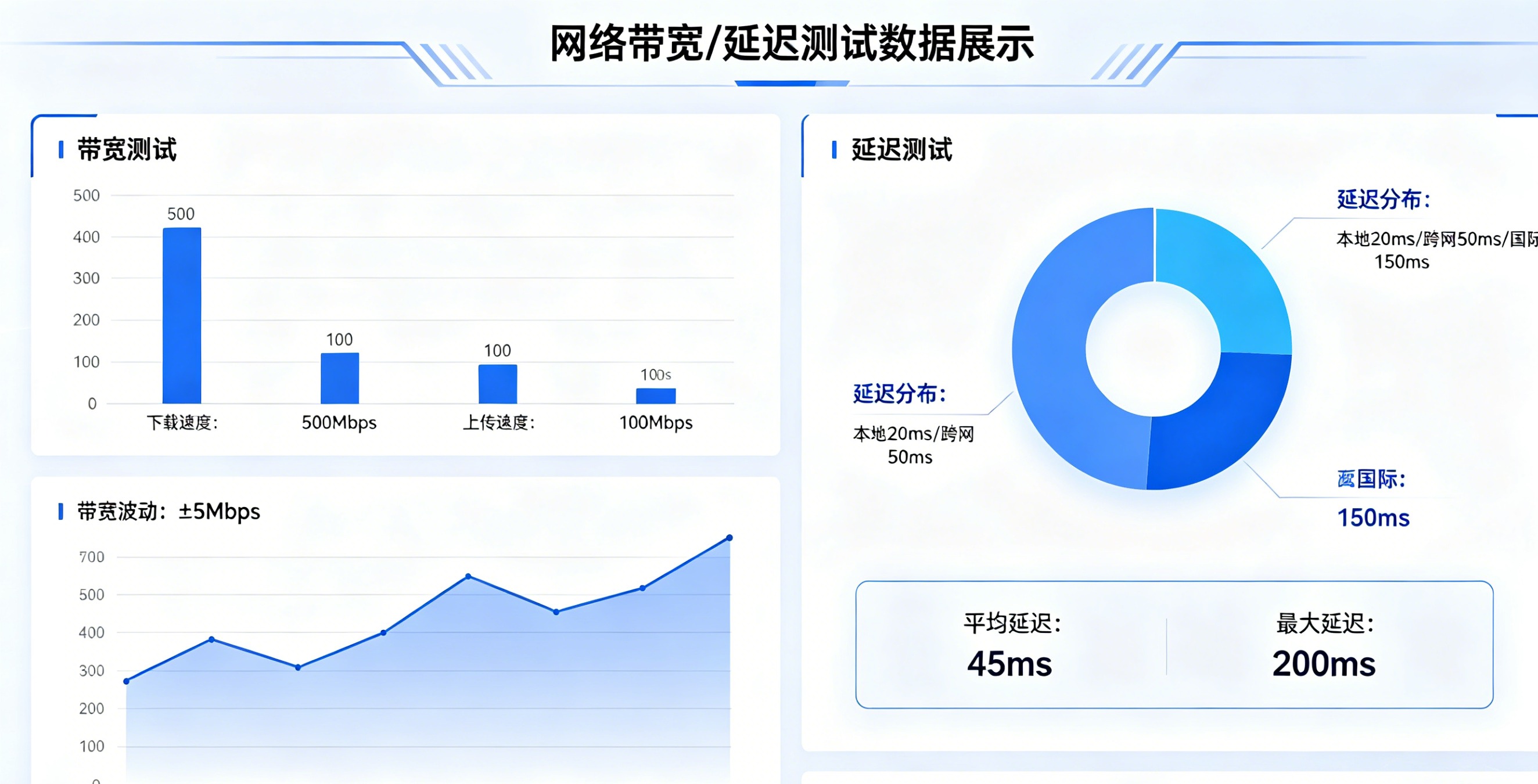
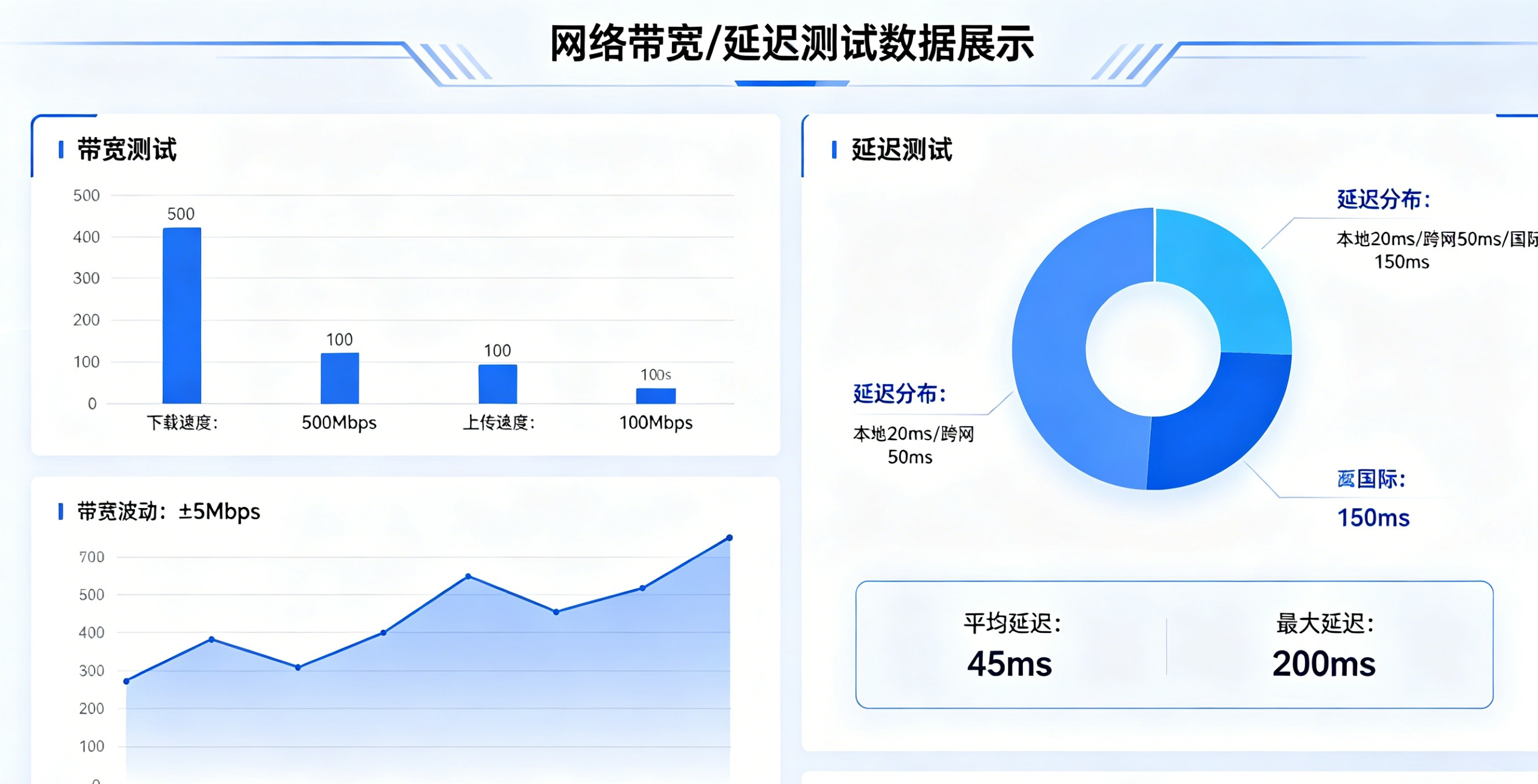
1080p at 60fps streaming uses approximately:
- Downlink: 15-25 Mbps (client)
- Uplink: 5-10 Mbps (host, for input data)
720p at 30fps drops to:
- Downlink: 5-8 Mbps
- Uplink: 2-4 Mbps
If you are on a 4G connection with limited bandwidth, 720p/30fps is the way to go. On stable Wi-Fi, 1080p/60fps is fine for casual and turn-based games.
Bottom Line
Sunflower Control can absolutely work for remote gaming — but only for the right game types. Turn-based, puzzle, and visual novel games work flawlessly. Casual and simulation games work well on LAN and Wi-Fi. Action and competitive games are not viable.
If remote gaming is your primary use case, Parsec or Moonlight are better choices. But if you want to occasionally play games while also using the full remote desktop features (file transfer, screen sharing, unattended access), Sunflower Control is a solid all-in-one option.
For more tips on optimizing your remote desktop experience, check out our Sunflower Control high latency fix guide and multi-device management tutorial. If you need to set up your gaming rig for unattended access, our unattended access setup guide covers the full process.
Sunflower Control is free for personal use and supports Windows, Mac, Android, and iOS. Download Sunflower Control from the official website and try remote gaming for yourself.