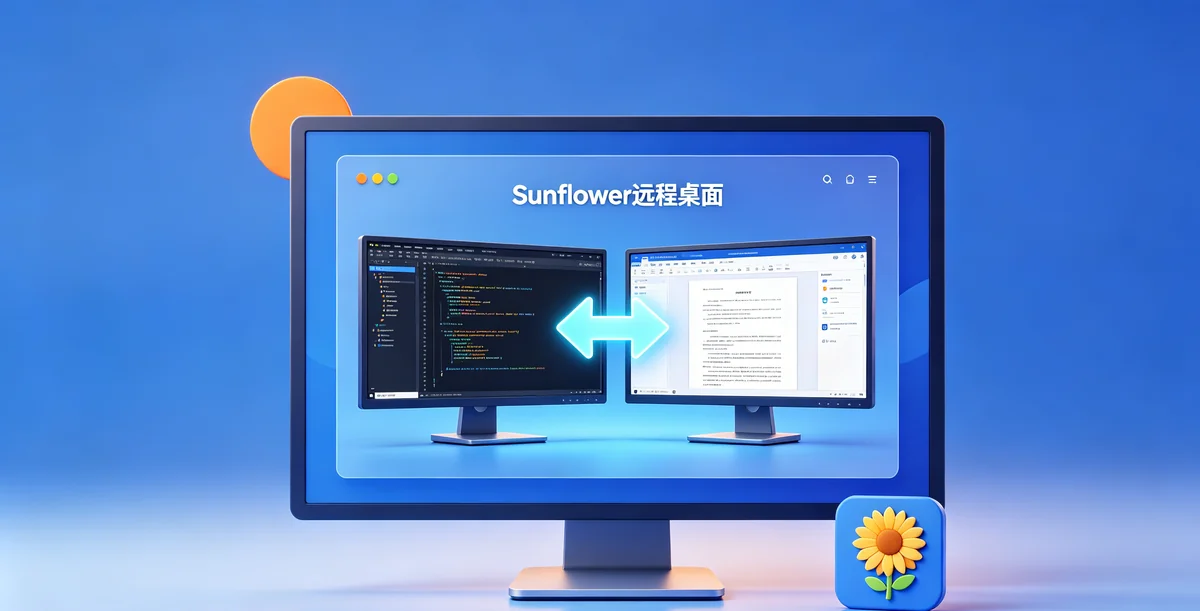
⚠️ This guide covers remote printing with Sunflower Control. Learn how to print documents from a remote computer to a printer connected to your local device.
Why Remote Printing Matters
Imagine this scenario: you’re working from home, connected to your office PC via Sunflower Control. You finish editing an important document that needs to be printed and signed by a colleague who’s still in the office. Without remote printing, you’d have to save the file, transfer it somehow, and ask someone else to print it. With remote printing, you just press Ctrl+P and the document appears on the office printer.
I discovered the value of remote printing when my boss asked me to print and sign a time-sensitive contract while I was working from home. Honestly, I didn’t even know Sunflower Control supported remote printing at the time — I was about to drive 30 minutes to the office just to print one page. Then I stumbled across the printer sharing feature in the settings and had the document printing on the office printer within minutes. That discovery saved me an hour of driving and taught me to explore all the features of tools I use daily.
How Remote Printing Works
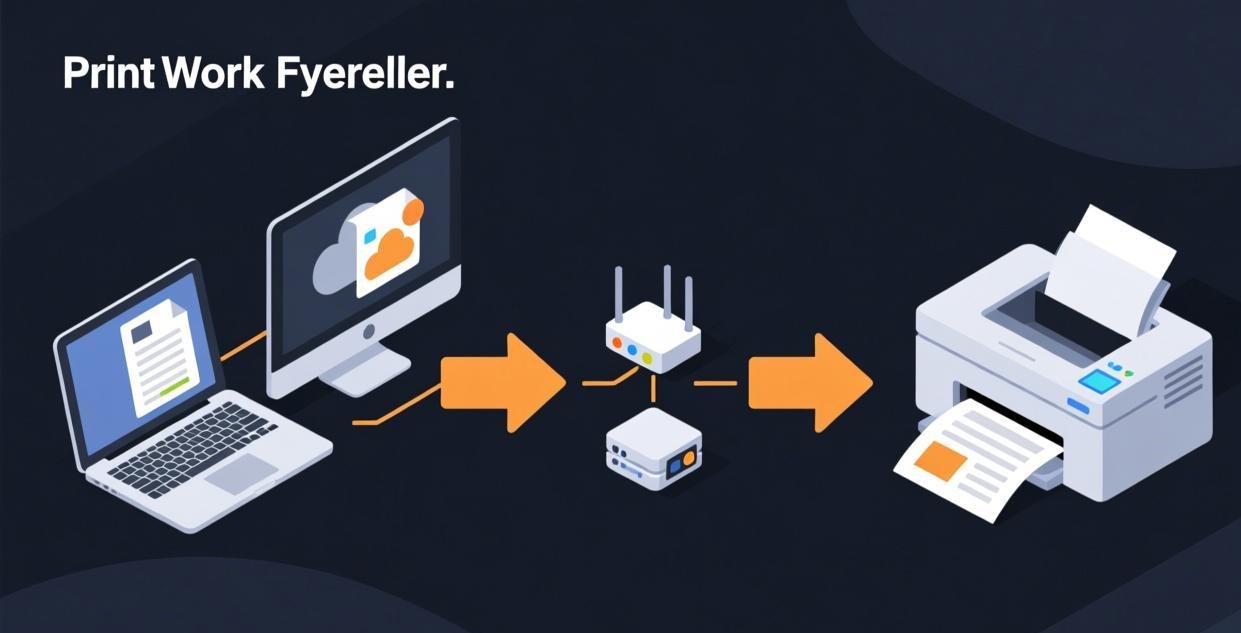
Remote printing in Sunflower Control works by creating a virtual printer on the remote computer that forwards print jobs to your local printer:
- You connect to the remote computer with printer sharing enabled
- A virtual “Sunflower Printer” appears on the remote computer
- When you print from the remote computer, select the Sunflower Printer
- The print job is sent through the Sunflower Control session to your local device
- Your local device sends the job to the connected printer
The entire process happens in seconds — the remote user just prints as they normally would, and the document comes out on the local printer.
| Component | Role |
|---|---|
| Remote computer | Generates the print job |
| Sunflower virtual printer | Intercepts the print job on the remote side |
| Sunflower session | Transmits the print data to the local device |
| Local device | Receives the print data |
| Local printer | Outputs the printed document |
Setting Up Remote Printing
Step 1: Enable Printer Sharing
Before connecting to the remote computer:
- Open Sunflower Control → Settings → Features
- Enable “Printer Sharing” (or “Redirect printers”)
- This setting applies to all future connections until disabled
Step 2: Connect with Printer Sharing Active
- Start a remote session normally
- Verify that printer sharing is active — check the session toolbar for the printer icon
- If the printer icon is grayed out, printer sharing was not enabled — disconnect, enable it, and reconnect
Step 3: Verify the Virtual Printer
On the remote computer:
- Open Settings → Devices → Printers & Scanners (Windows) or System Settings → Printers (Mac)
- Look for “Sunflower Printer” or “Redirected Printer” in the list
- Set it as the default printer if you’ll be printing frequently during this session
Step 4: Print a Test Page
- Open any document on the remote computer
- Press Ctrl+P (or Cmd+P on Mac)
- Select “Sunflower Printer” as the printer
- Click Print
- Check your local printer for the output
If the test page prints correctly, remote printing is set up and working.
Printing Methods Compared
| Method | Ease | Quality | Speed | Requires Paid Plan |
|---|---|---|---|---|
| Built-in printer sharing | Easy | Good | Moderate | Possibly |
| File transfer + local print | Moderate | Excellent | Slow (transfer time) | No |
| Email to self + local print | Easy | Excellent | Slow | No |
| Cloud storage + local print | Easy | Excellent | Slow | No |
| PDF export + file transfer | Moderate | Excellent | Moderate | No |
The built-in printer sharing is the most convenient but may not be available on the free plan. The file transfer workaround is always available and produces the best quality output.
Alternative: File Transfer Workaround
If built-in printer sharing isn’t available or isn’t working correctly, use this reliable workaround:
- On the remote computer, export or save the document as a PDF
- Use Sunflower Control’s file transfer feature to copy the PDF to your local device
- Open the PDF on your local device
- Print it to your local printer normally
This method always works regardless of your subscription plan, and it produces the highest quality output because the printer driver on your local device is specifically optimized for your particular printer model. Frankly, I use this file transfer method most of the time even though I have printer sharing available on my paid plan — the quality is noticeably better, especially for documents with complex graphics, custom fonts, or precise formatting that the generic virtual printer driver doesn’t handle well.
Remote Printing on Different Platforms
Windows to Windows
The most reliable remote printing scenario:
- Both computers are running Windows
- The local computer has the printer properly installed
- Enable printer sharing in Sunflower Control settings
- Connect and print — the virtual printer appears automatically
Mac to Mac
Remote printing between Macs works similarly:
- Enable printer sharing in Sunflower Control settings on both Macs
- Connect and look for the redirected printer in the remote Mac’s printer list
- macOS may require additional permission for printer redirection
Cross-Platform (Windows to Mac or vice versa)
Cross-platform remote printing can be more challenging:
- Driver compatibility issues may arise between Windows and macOS
- The virtual printer may not appear correctly on the remote side
- Workaround: Use the file transfer method for reliable cross-platform printing
Mobile to Printer
Printing from a remote session on your phone:
- Connect to the remote computer from your Android or iOS device
- Print from the remote computer to a network printer on the same network as the remote computer
- Or: Transfer the file to your phone and print via AirPrint (iOS) or the print service (Android)
Common Remote Printing Issues
| Issue | Cause | Solution |
|---|---|---|
| Virtual printer doesn’t appear | Printer sharing not enabled | Enable in Settings → Features, then reconnect |
| Print job goes to wrong printer | Default printer not set | Set Sunflower Printer as default during the session |
| Poor print quality | Virtual printer uses generic driver | Use file transfer workaround for best quality |
| Print job stuck in queue | Connection interruption | Clear the print queue, reconnect, and try again |
| Can’t print in color | Virtual printer defaults to B&W | Change printer preferences to color before printing |
| Large documents fail to print | Buffer size limit | Break into smaller print jobs or use file transfer |
| “Printer offline” error | Local printer not detected | Check local printer is on and connected |
| Font substitution issues | Remote font not available locally | Use PDF export + file transfer method |
Optimizing Print Quality
For Text Documents
Text documents (Word, PDF, emails) print well through the virtual printer:
- Set the virtual printer to the same paper size as your local printer (Letter/A4)
- Use “Normal” or “Draft” quality for everyday documents
- Use “High” quality for final versions and formal documents
For Graphics and Photos
Graphics-heavy documents may lose quality through the virtual printer:
- Use the file transfer workaround for best results
- If using the virtual printer, set quality to “High”
- Check color settings — the virtual printer may default to grayscale
For Large Documents
Documents over 50 pages may have issues:
- Print in batches of 10-20 pages
- Use PDF export + file transfer for very large documents
- Check the print queue regularly to ensure no jobs are stuck
Remote Printing Security Considerations
Print jobs contain the content of your documents, so consider these security aspects:
- Print jobs are encrypted in transit — Sunflower Control encrypts all session data, including print jobs
- Print jobs may be cached — The remote computer may temporarily cache print data before sending it
- Shared printers — If the local printer is shared (office network printer), other users may see your documents
- Print logs — Many office printers log all print jobs. Be aware that your remote print jobs may be recorded
- Sensitive documents — For highly confidential documents (legal contracts, financial records, medical information), consider using the file transfer method and printing locally on a dedicated printer that only you have access to. Network printers in shared office spaces may expose your documents to other users who happen to be near the printer when your job comes out.
Remote Printing Checklist
Before connecting for a print job:
- Enable Printer Sharing in Sunflower Control settings
- Verify your local printer is on and connected
- Check that your local printer has paper and ink/toner
- Ensure the printer is set as your default or is easily selectable
- Close other print jobs that might queue ahead of yours
During the remote session:
- Verify the virtual printer appears on the remote computer
- Print a test page first for important documents
- Set the correct paper size in print preferences
- Choose the appropriate quality setting
- Monitor the print queue for errors
After printing:
- Collect your documents from the printer promptly (especially in shared spaces)
- Clear the print queue on the remote computer
- Disable printer sharing if you don’t need it for future sessions
- Shred or securely dispose of any misprints containing sensitive information
Advanced Remote Printing Tips
Printing to Multiple Local Printers
If your local device has access to multiple printers (USB printer + network printer), you can choose which one receives the print job:
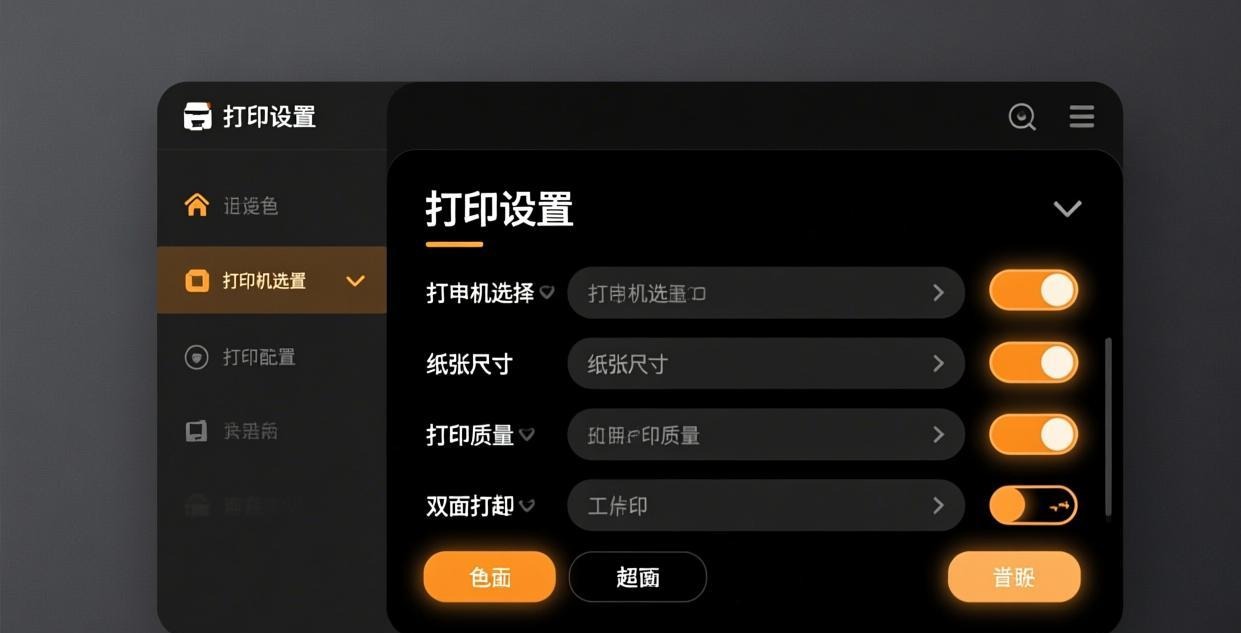
- During the remote session, go to Print settings
- The virtual printer may show multiple redirected printer options
- Select the specific printer you want to use
- Each redirected printer corresponds to a different local printer
Duplex (Double-Sided) Printing
To print double-sided remotely:
- Check if the virtual printer supports duplex settings
- If not, use the file transfer workaround — print locally with full driver support
- Some virtual printers only support simplex (single-sided) printing
Custom Paper Sizes
For non-standard paper sizes (envelopes, labels, legal size):
- The virtual printer may not support all custom paper sizes
- Use the file transfer method for reliable custom size printing
- Set the paper size in the remote application’s print dialog before sending
Real-World Remote Printing Scenarios
Working from Home, Printing at the Office
The most common scenario. You’re at home, need a document printed at the office for a colleague to pick up:
- Connect to your office PC via Sunflower Control
- Open the document on the remote computer
- Print to the office printer (either through virtual printer or by printing directly if the office printer is networked to the remote PC)
- Tell your colleague the document is on the printer
Printing Documents Found on a Remote Server
You discover a file on a remote server that needs to be printed locally:
- Connect to the server via Sunflower Control
- Open the file in the appropriate application
- Print through the virtual printer to your local printer
- Or: Transfer the file to your local device and print with better quality
Signing and Returning Documents
You receive a document that needs to be printed, signed, and returned:
- Connect to the remote computer
- Transfer the document to your local device
- Print it locally on your printer
- Sign the physical copy
- Scan the signed document
- Transfer the scan back to the remote computer
This workflow combines file transfer and local printing for the best results. I use this exact process regularly for contracts and legal documents — the print quality from a local printer with proper manufacturer drivers is always better than what you get through a virtual printer redirect. For important documents, the extra two minutes of transferring and printing locally is absolutely worth the quality difference.
Remote Printing Performance Tips
Remote printing speed depends on several factors. Here’s how to optimize:
| Factor | Impact | Optimization |
|---|---|---|
| Document size | Large PDFs take longer to transmit | Compress PDFs before printing, or break into smaller jobs |
| Graphics content | High-res images increase data size | Use “Draft” quality for proofs, “High” for final |
| Network speed | Slow connections delay print jobs | Use file transfer for large documents on slow connections |
| Printer type | Laser printers process faster | Inkjet printers may be slower for complex graphics |
| Print resolution | Higher DPI = more data | Use 300 DPI for text, 600 DPI for photos |
Typical print job transmission times:
| Document Type | Size | Transmission Time (10 Mbps) | Transmission Time (50 Mbps) |
|---|---|---|---|
| Plain text (1 page) | 50 KB | < 1 second | < 1 second |
| Text with images (5 pages) | 2 MB | 2 seconds | < 1 second |
| Presentation (20 slides) | 10 MB | 8 seconds | 2 seconds |
| High-res photo document | 50 MB | 40 seconds | 8 seconds |
| Full color catalog (50 pages) | 200 MB | 3 minutes | 35 seconds |
For any document over 50 MB, I strongly recommend using the file transfer method instead of direct remote printing — it’s more reliable and you can verify the file looks correct before committing it to paper.
Frequently Asked Questions About Remote Printing
Q: Can I print from my remote PC to a printer that’s connected via USB to my laptop? A: Yes, as long as your laptop recognizes the USB printer and it appears in your laptop’s printer list, Sunflower Control can redirect print jobs to it. Make sure the printer is turned on and your laptop’s print service is running before connecting.
Q: Does remote printing work with wireless printers? A: Yes, wireless (Wi-Fi) printers work the same as wired printers for remote printing. As long as your local device can print to the wireless printer, Sunflower Control can redirect remote print jobs to it.
Q: How much does remote printing slow down my remote session? A: Remote printing has minimal impact on the remote session performance. Print jobs are sent as a separate data stream and don’t significantly affect screen sharing quality. Large print jobs with high-resolution graphics may cause brief momentary lag during transmission.
Q: Can I cancel a remote print job? A: Yes, cancel it the same way you would cancel any print job — open the print queue on the remote computer and cancel the job. If the job has already been transmitted to the local device, you may also need to cancel it in the local print queue.
What’s Next?
- Learn file transfer (reliable printing alternative) → File transfer tutorial
- Set up unattended access → Unattended access guide
- Screen sharing for collaboration → Screen sharing guide
- Download for your platform → Windows | Mac
- Troubleshoot connection issues → Connection failed guide
This guide was written based on Sunflower Control 2026 latest version. Software features may change with updates. This site is an independent information resource and is not affiliated with Oray or the Sunflower remote control development team.
Disclaimer: This is an independent guide and review site. We are not associated with Oray, Sunflower, or any other remote control software company. All trademarks belong to their respective owners. This site provides links to official sources only for your safety and convenience.