One of the most underrated features of Sunflower Remote Control is its file transfer capability. Most people use Sunflower to control another computer remotely — but between troubleshooting and remote meetings, you often need to move files between machines too.
The good news: Sunflower handles file transfers natively. No need for cloud storage, USB drives, or email attachments. The less good news: the default transfer settings aren’t optimized for speed, and large files can be frustratingly slow if you don’t tweak a few things.
This guide covers all three transfer methods, speed optimization, and common failure fixes.
Method 1: Drag-and-Drop Transfer (Best for Small/Medium Files)
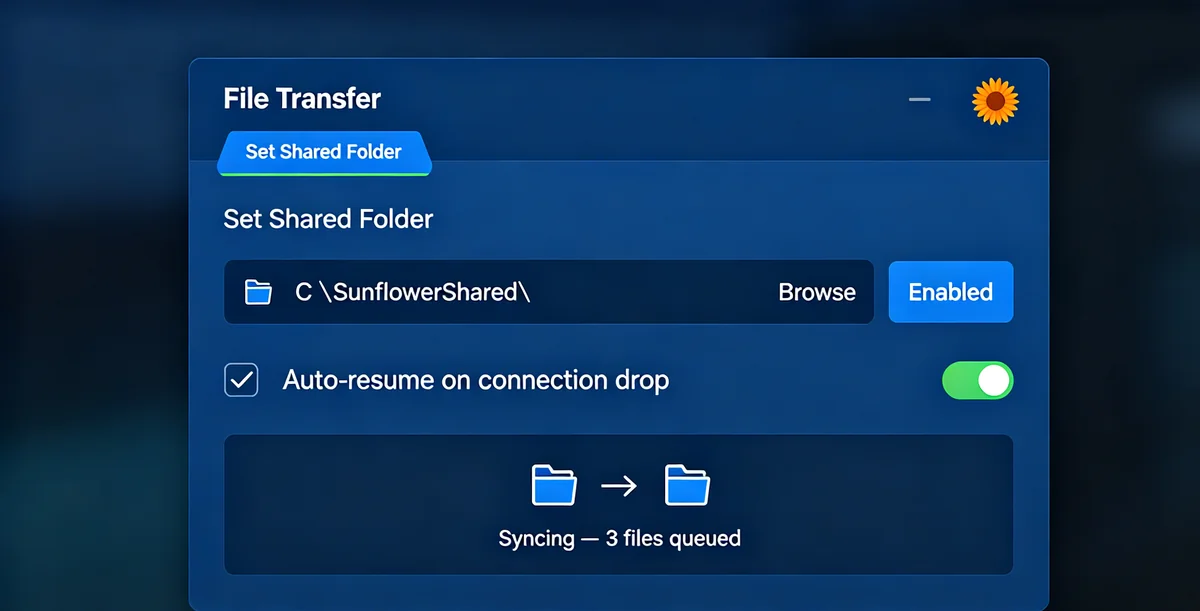
The simplest method — literally drag a file from your local computer and drop it onto the remote desktop window.
Steps:
- Connect to the remote computer via Sunflower
- Open File Explorer (Windows) or Finder (Mac) on your local machine
- Find the file you want to transfer
- Drag the file from your local File Explorer window into the Sunflower remote desktop window
- Drop it onto the remote desktop or a specific folder
The file will transfer and appear on the remote computer’s desktop (or the folder you dropped it into). A progress bar shows transfer status.
What’s happening behind the scenes: The file is being transmitted through Sunflower’s relay servers (or directly P2P if you’ve enabled direct connection). The entire file needs to upload from your machine and download to the remote machine before the transfer completes.
Best for: Files under 500MB — documents, presentations, code files, images, small videos.
Limitations:
- If the remote session disconnects during transfer, the file transfer is interrupted and you need to start over
- Transfer speed is limited by your upload bandwidth
- Not ideal for batch transfers (dragging 50 files one by one is tedious)
Method 2: Shared Folder Sync (Best for Large Files and Batches)
For larger files or batch transfers, the shared folder method is more reliable.
Steps:
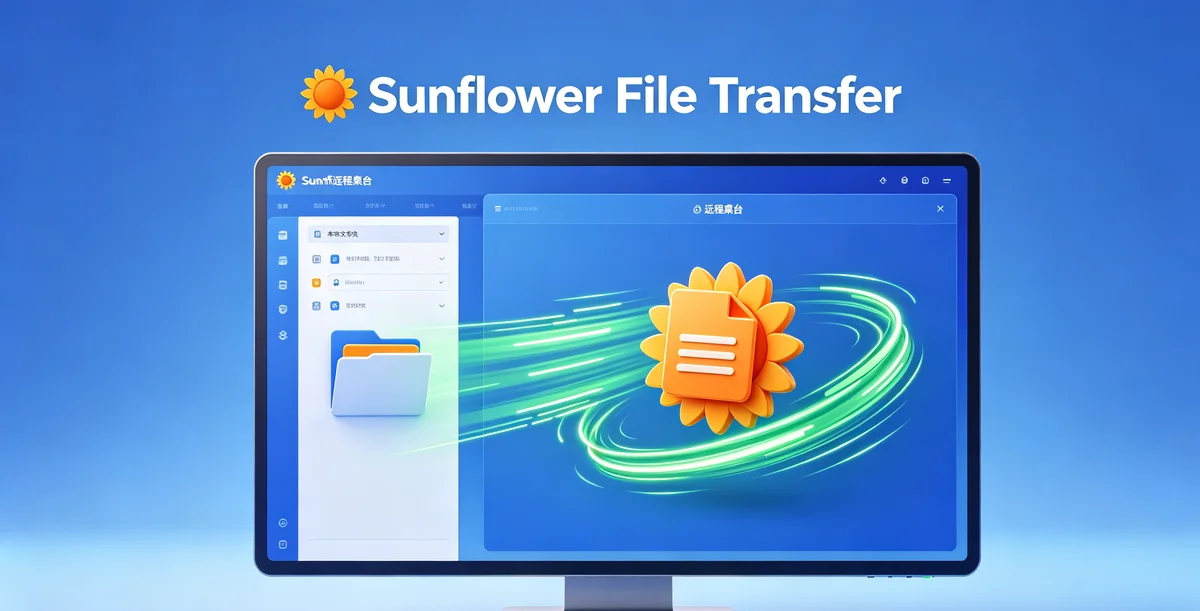
- On the remote computer, create a folder (e.g.,
C:\SunflowerShared\) - In Sunflower, go to Settings → File Transfer → Set Shared Folder
- Select the folder you created
- Now any files you copy to this folder from your local machine will appear on the remote machine, and vice versa
- You can also map this folder as a network drive for easier access
Why this is better for large files:
- Transfers happen in the background — you don’t need to keep the remote session open
- If the connection drops, Sunflower automatically resumes the transfer
- You can queue multiple files and walk away
- Speed is often faster because the transfer uses optimized background channels rather than the screen-sharing data stream
For files over 2GB: This is the recommended method. The drag-and-drop method can timeout with very large files on slower connections.
Method 3: Copy-Paste via Shared Clipboard (Quickest for Individual Files)
Sunflower’s shared clipboard also supports file transfer — copy a file on one side, paste on the other.
Steps:
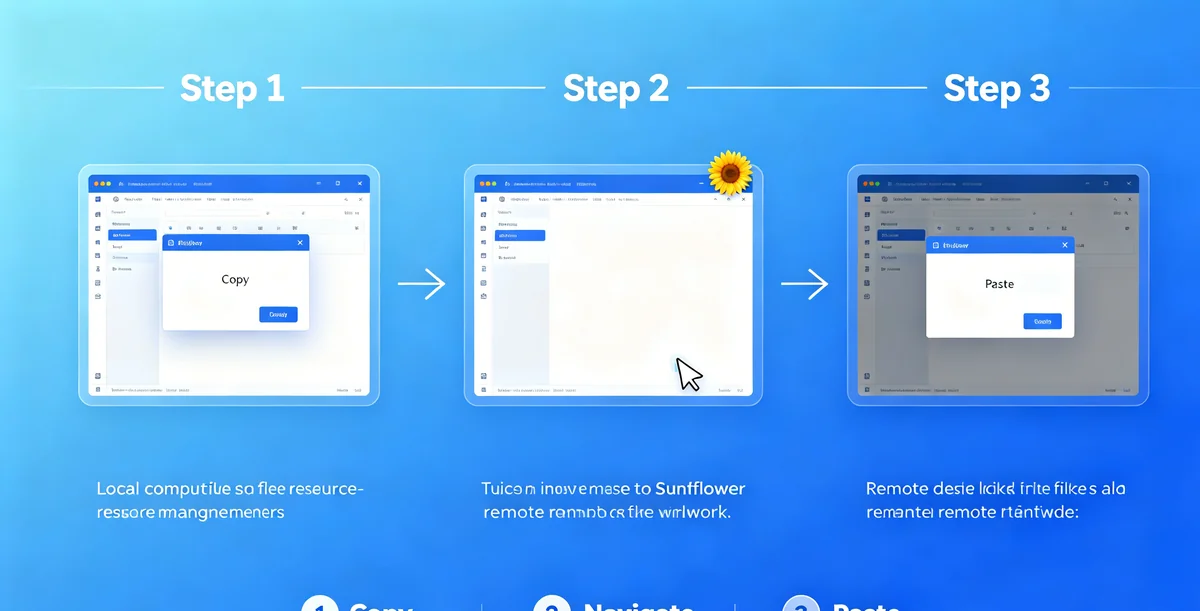
- Connect to the remote computer
- On your local machine, right-click a file → Copy (Ctrl+C)
- Click inside the Sunflower remote desktop window
- Navigate to the destination folder on the remote machine
- Right-click → Paste (Ctrl+V)
The file transfers as if you copied and pasted within the same computer. This is the fastest method for single files under 100MB — especially useful for quickly sharing a screenshot or document during a support session.
Note: This requires the shared clipboard to be enabled: Settings → General → Enable Shared Clipboard.
Speed Optimization Tips
File transfer speed through Sunflower depends on several factors. Here’s how to maximize it:
1. Enable Direct (P2P) Connection By default, Sunflower routes all data through its relay servers — which adds latency. If both computers are on the same network or have publicly routable IPs, enabling P2P connection bypasses the relay:
Settings → Network → Enable Direct Connection (or “P2P Mode”)
With P2P enabled, files transfer directly between the two computers without going through Sunflower’s servers. Speed can increase by 2-5x in some cases.
2. Check Both Ends’ Internet Speed The transfer speed is limited by the slower of your upload speed and the remote’s download speed. If you’re sending a file:
- Your upload speed matters most
- The remote’s download speed matters second
- Run a speed test on both sides to identify the bottleneck
3. Close Bandwidth-Heavy Applications During large transfers, close streaming apps (Netflix, YouTube), cloud sync (Dropbox, OneDrive), and torrents on both computers. They compete for the same bandwidth.
4. Use Ethernet Instead of Wi-Fi Wi-Fi introduces packet loss and latency that slow down any file transfer. If you’re transferring files larger than 1GB, plugging in an Ethernet cable on both ends can make a noticeable difference.
5. Compress Before Transferring A folder of 100 individual small files transfers much slower than a single ZIP file of the same total size. This is because each file has overhead — connection setup, metadata transfer, and acknowledgment. Zipping first reduces thousands of tiny transfers to one efficient transfer.
6. Transfer During Off-Peak Hours If both computers are on shared networks (office, campus), file transfer speeds drop during peak hours when everyone is using the network. Late evening or early morning transfers are often 30-50% faster.
Troubleshooting Common Transfer Issues
“File transfer stuck at 0% or 99%” This usually means the connection dropped mid-transfer. Cancel the transfer, check both computers’ internet connections, and try again. If it keeps happening, switch to the shared folder method.
“Transfer is extremely slow (under 100KB/s)” Check if you’re routing through Sunflower’s relay versus direct P2P. You can verify this in Settings → Network → Connection Status. If it says “Relay,” try enabling P2P.
“Some files fail to transfer but others work”
Files with special characters in their names (especially Chinese characters, emoji, or symbols like # and %) can cause transfer failures on some systems. Rename the file to use only letters, numbers, and hyphens, then try again.
“Can’t drag files into the remote window” Make sure file transfer is enabled: Settings → File Transfer → Enable File Transfer must be checked. This setting is sometimes disabled by default in enterprise deployments.
“Large file transfer takes forever and then fails” Split the file into smaller chunks using a tool like 7-Zip (right-click → Add to archive → Split to volumes, size: 500MB). Transfer the chunks one by one, then reassemble on the remote side.